Zombicide MapEditor

How To Get Mapeditor

Use this button to download the latest version of Mapeditor.
Installation instructions on the README file.

Adding Zombicide boxes

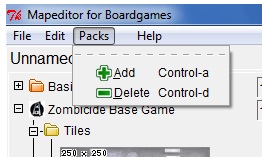
The “pack” menu on the upper left allows you to import Zombicide’s core boxes and expansions. After downloading the .ZIP file of the chosen box, select it in this menu. The matching items appear in their own menus.

NOTE: If you own previous versions of these packs, please delete them first!

Adding Zombicide boxes

How to use Mapeditor

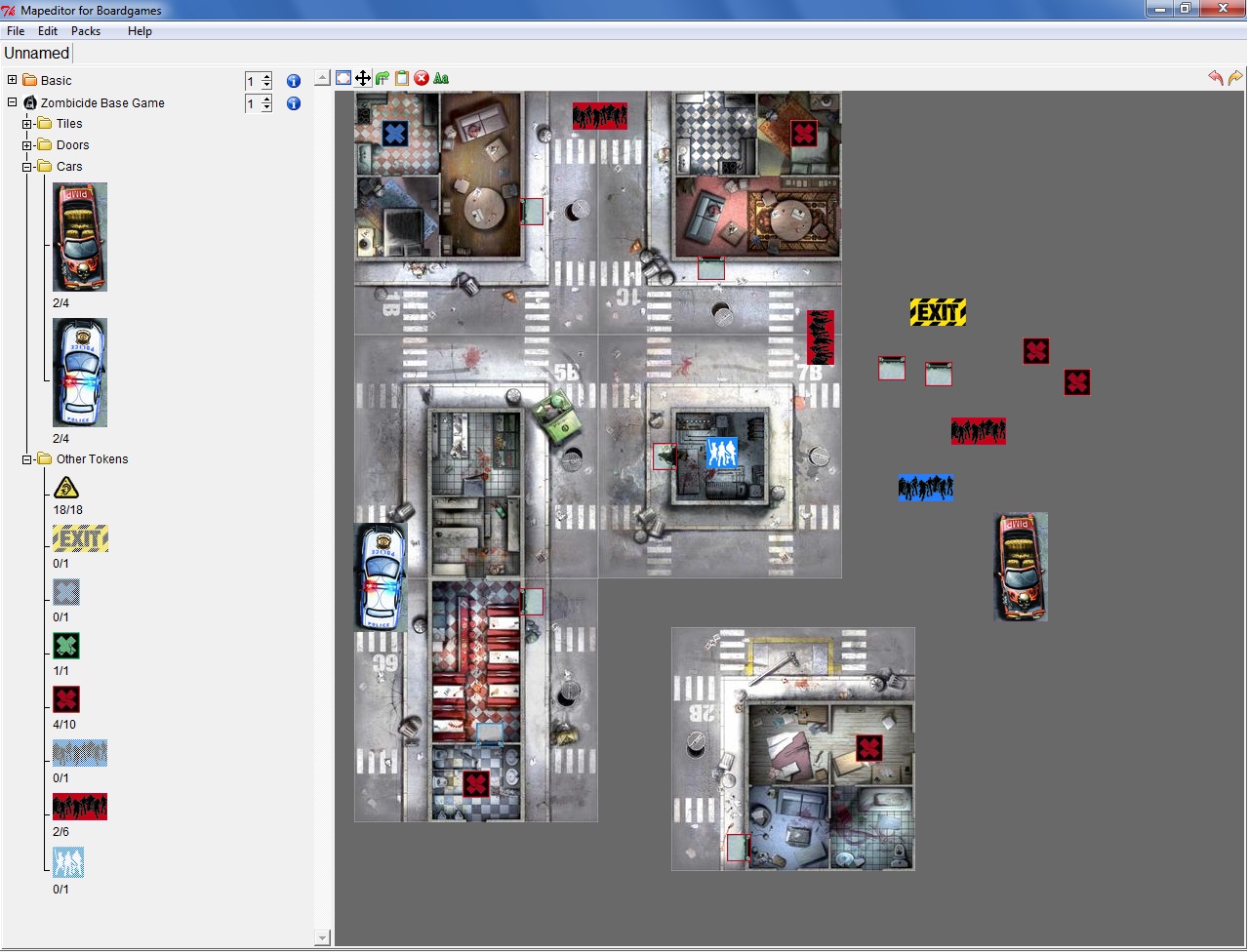
  1. Tiles and tokens are set as menus in the left column.
  2. The grey area is the surface where you set the mission.
  3. Click on the item you need, then click on the surface to put it down. You can handle it as you want by clicking on it, and rotate it by right-clicking.
  4. The top buttons of the surface allow you to move, rotate, and delete the selected items. You can also fit in texts.
  5. Using the “file” menu, on top-left, you can export your mission in .PNG format. That’s it! Ready for a Zombicide?
How to use Mapeditor

What If I Own Extra Tiles?

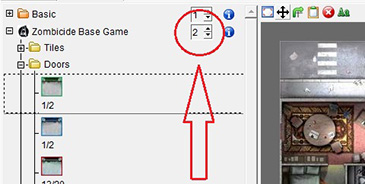
Each item comes with a value matching the corresponding Zombicide box’ contents. If you own several of them, or own extra tiles sets, you can alter these values in the matching menu, on the top-left of the items menu (see below).

Add Extra Tiles
Cookie Preferences